Getting started: tiers, roles, tabs, and invitations
This page is a single reference for what each account tier means, what each role is allowed to do, what you will find on each tab, and exactly where to go to invite other users based on your tier and role.
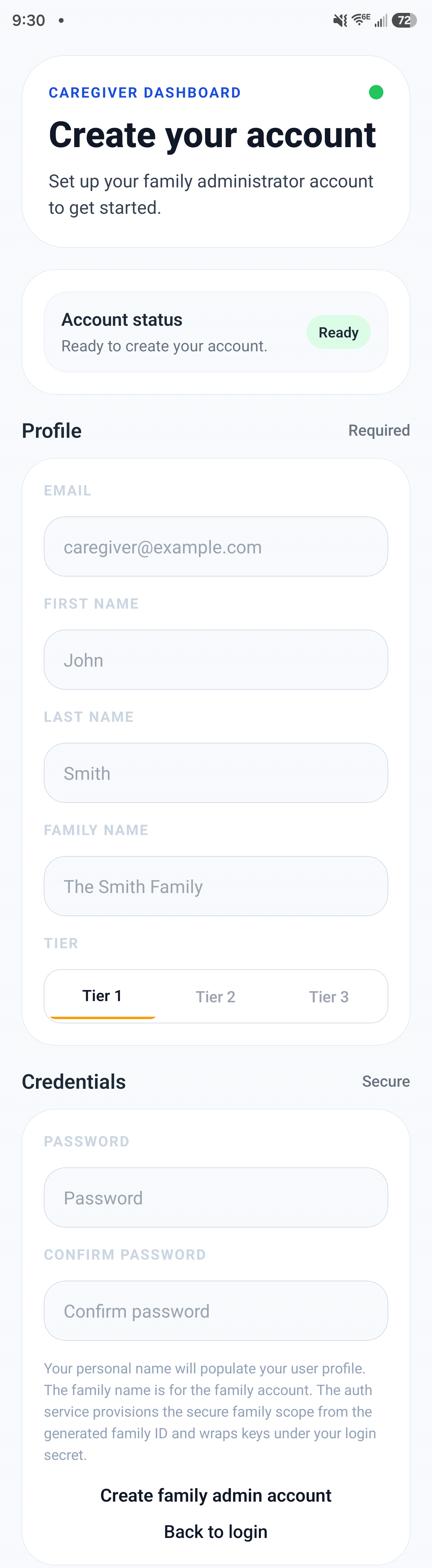
Create account flow: the first screen a family admin sees when setting up the account.
Account tiers
| Tier | Who it's for | Patient scope |
|---|---|---|
| Tier 1 | A single-patient family account, typically one household caring for one loved one. | One patient per account. No patient selector is shown because there is only one patient. |
| Tier 2 | A family account with up to 10 people, where any member may also be a patient. | Up to 10 people in one family. A patient selector lets you switch between patients within that single family. |
| Tier 3 | A professional caregiver account for people who care for patients across separate households. | Up to 999 patients, each in their own separate patient-owned family. A patient selector lets you switch across many patient families. Patients invited or linked into Tier 3 get their own Tier 1 accounts. |
Naming differs by tier: Tier 1 and Tier 2 call the record-keeping area Health Journal. Tier 3 calls the same underlying surface Clinical Documentation, and Tier 3 is the only tier with medical reports and SOAP notes.
Roles and permissions
| Role | Where it applies | Can invite | Can edit roles | Can document care |
|---|---|---|---|---|
| Family Admin | Tier 1 and Tier 2 | Yes | Yes | Yes |
| Caregiver Member | Tier 1 and Tier 2 | No | No | Yes |
| Independent Caregiver (Professional Admin) | Tier 3 | Yes, in every patient family they are invited into | Yes, in every patient family they are invited into | Yes |
- The first family member to create a Tier 1 or Tier 2 account automatically becomes the family admin.
- Only the family admin can invite new members, change roles, or manage pending invitations in Tier 1 and Tier 2 families.
- Caregiver members can fully participate in day-to-day care documentation but cannot invite or manage other users.
- Tier 3 professionals inherit professional-admin authority inside each patient family they are invited into, which lets them invite additional caregivers on behalf of that patient family.
Accepting an invitation
When someone sends you an invitation, the app guides you through a short acceptance flow before the account becomes active.
- Open the invitation email or enter the email address and invitation code in the app.
- Confirm the email matches the invited account and the family or care team you were added to.
- Create or confirm a password that will be used for future sign-in and protected sync.
- Complete the account setup and return to the home or care screen once the invitation is accepted.
Example: A caregiver receives an invite from a family admin. They click the invitation link, confirm the email address, paste the code if needed, create a password, and then land in the app as a valid team member.
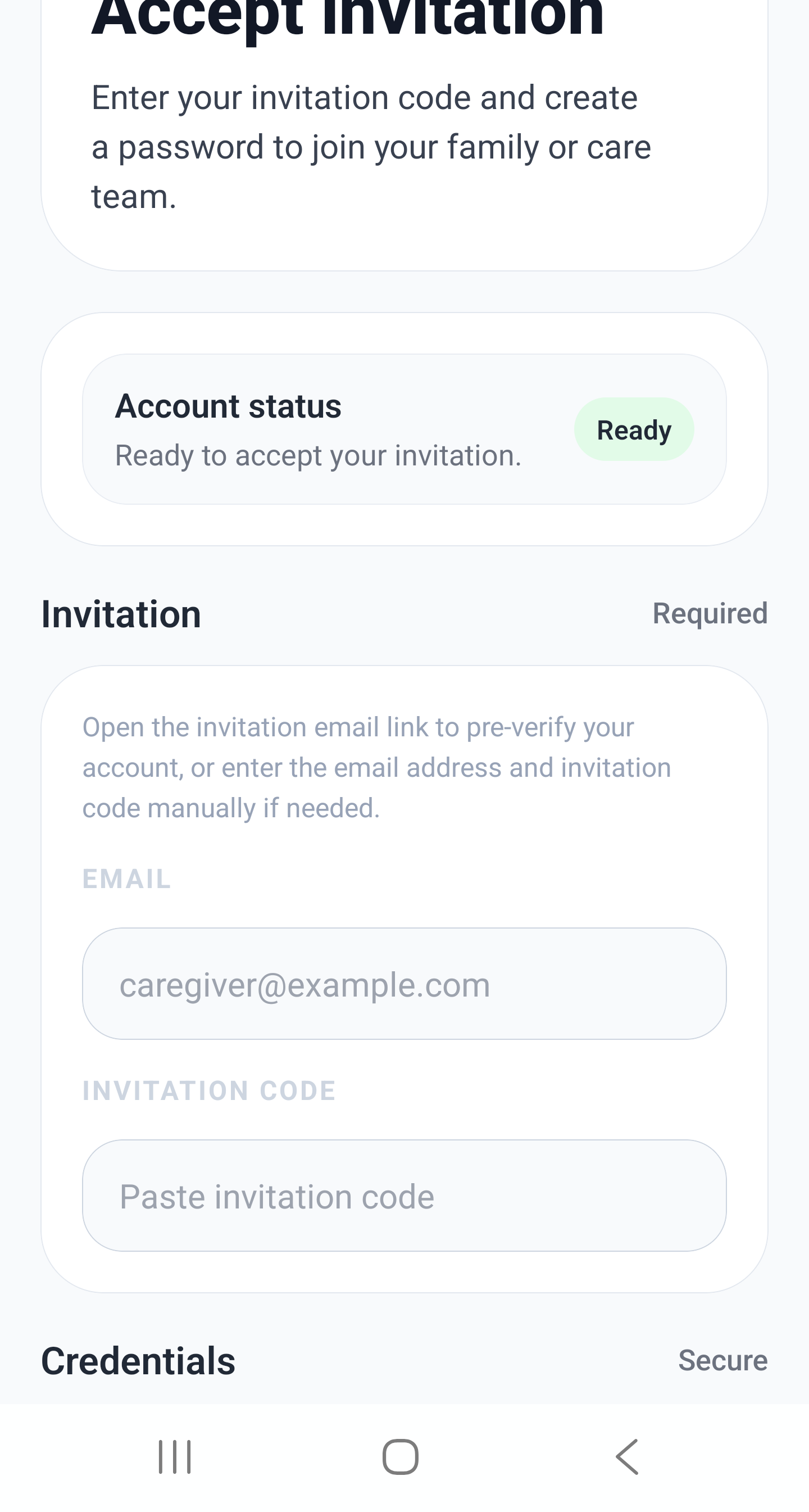
Invitation acceptance screen: enter the email and invitation code to join the family or care team.
Tabs in the app
The app is organized into a small set of primary tabs. On screen, the tab labels are the same across tiers, but the second tab supports multi-patient workflows on Tier 3.
| Tier | Tab labels shown in app |
|---|---|
| Tier 1 and Tier 2 | Home, Care, Health, Journal |
| Tier 3 | Home, Care, Health, Journal |
| Tab | What it is for | Common workflows |
|---|---|---|
| Home | Day-at-a-glance view of priorities, overdue items, and recent activity. | Review alerts, see what needs attention now, and jump into the right workflow. |
| Care | Operational care coordination and schedule execution. | Manage tasks, appointments, shifts, reminders, and handoff notes. |
| Health | Clinical and patient-specific records used for informed care decisions. On Tier 3, this tab includes the patient selector for switching between patient families. Also where family/patient members are managed and invited. | Track medications, meals/hydration, insurance documentation, EHR notes, health insights, and family or patient member management. |
| Journal | Shared timeline and team communication center. | Capture care notes, post updates, and keep the team aligned between shifts. |
How to invite by tier and role
Tier 1 and Tier 2 (family admin only)
- Confirm you are the family admin. Caregiver members do not see invite controls.
- Open the Health tab and go to family members / family settings.
- Choose Invite Member, enter the caregiver's email, and select their role (family admin or caregiver member).
- Review the permissions shown before sending the invite.
- Keep the app open for 1 to 3 minutes after sending so the encrypted invitation envelope can finish syncing.
- Track the invitation status (sent, accepted, expired, or revoked) from the same screen, and revoke and resend if needed.
Tier 3 (independent caregiver / professional admin)
- Open the Health tab and select the specific patient family you want to act within, using the patient selector.
- From inside that patient's context, open family/member settings the same way a Tier 1 or Tier 2 admin would.
- Distinguish which kind of invite you are sending:
- Patient onboarding/linking — bringing a brand-new patient into your caseload, which creates or links a distinct patient-owned family (that patient gets a Tier 1 account).
- Patient-family member invite — inviting an additional caregiver or family member into a patient family you already have access to.
- Send the invite and wait the same 1 to 3 minutes for encryption envelope creation and sync before the invited person accepts.
Example: A daughter creates a Tier 2 family account for her father and invites two siblings as caregiver members. She stays family admin; her siblings can document care but cannot invite anyone else.
Example: A professional caregiver on Tier 3 selects Patient A in the patient selector, then invites Patient A's daughter as a patient-family member so she can view Patient A's Journal alongside the caregiver.
Navigational pathways
- Tier 1 / Tier 2 invite path:
Health tab → Family Members → Invite Member - Tier 3 invite path:
Health tab → Patient Selector → (choose patient) → Family Members → Invite Member - Tier 3 new-patient onboarding path:
Health tab → Patient Selector → Add/Link Patient - Route names for reference:
/(tabs)/dashboard(Home),/(tabs)/schedule(Care),/(tabs)/health(Health),/(tabs)/messages(Journal).
Tip: If an invite is failing or delayed, wait an extra minute before retrying from the same invitation link rather than sending a duplicate invite.