Managing family roles and invitations
Use this guide to keep access clear, reduce invitation confusion, and protect patient data boundaries.
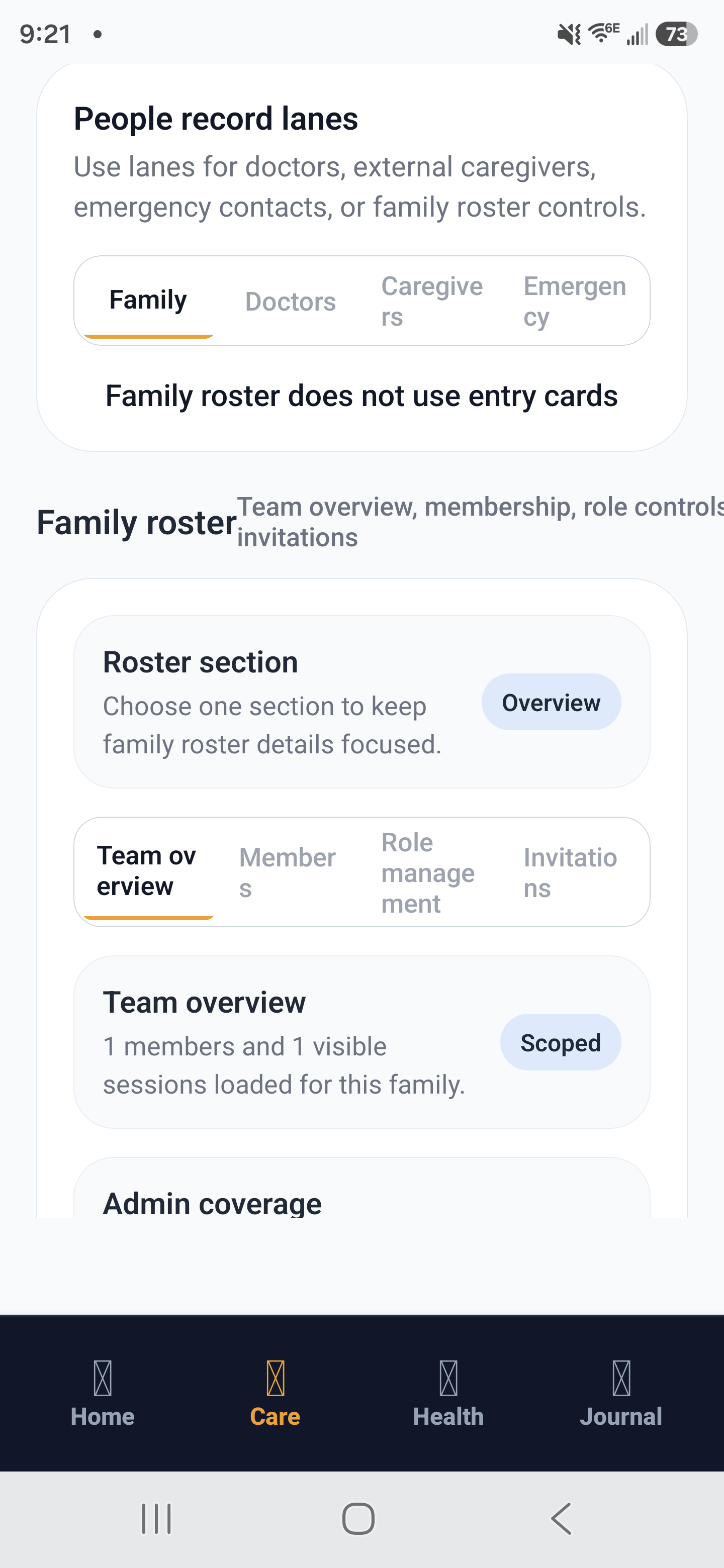
Family roster overview: overview, member management, role controls, and pending invitations.
Invite workflow
- Open the family members screen and choose Invite Member.
- Enter the caregiver email and select the correct role.
- Review permissions before sending the invite.
- Track invitation status: sent, accepted, expired, or revoked.
- Revoke and resend if the wrong email was used.
Role permission quick reference
| Role | Can Invite | Can Edit Roles | Can Document Care |
|---|---|---|---|
| Family Admin | Yes | Yes | Yes |
| Caregiver Member | No | No | Yes |
| Independent Caregiver Admin (Tier 3) | Yes | Yes | Yes |
Example: fixing accidental over-permission
Scenario: A new family member was invited as admin by mistake. The current admin opens member settings, changes role to caregiver member, and confirms invite controls are removed from that account.
Best practices
- Keep only one or two trusted admins per family account.
- Review pending invitations weekly and revoke stale ones.
- Use role changes instead of deleting users when responsibilities change.